
You might want to loop a video you already have, or you might want a small pond that keeps changing as you work. Start with what you want to see and how you want it to move, then choose the kind of wallpaper that fits.
Choose the kind of wallpaper
- Show a single photo or rotate through a set of images. Use the built-in Windows background settings to choose the image fit and slideshow interval.
- Play a video or web page behind your icons. Choose a live wallpaper app that supports your media, and check its file formats and playback controls.
- Watch a scene that keeps moving, such as a pond. Choose a live wallpaper app that draws its own scene, and check the themes, motion controls, and how to stop it.
Windows offers pictures, solid colors, slideshows, and Windows Spotlight under Settings → Personalization → Background. A slideshow changes the picture at intervals. Microsoft's guide to desktop backgrounds
Lively Wallpaper supports video and web wallpapers. Wallpaper Engine offers video, web, and scene wallpapers, among other types. Check the official sites for the media each app supports and how to install it. Lively Wallpaper's official wiki · Wallpaper Engine's official site
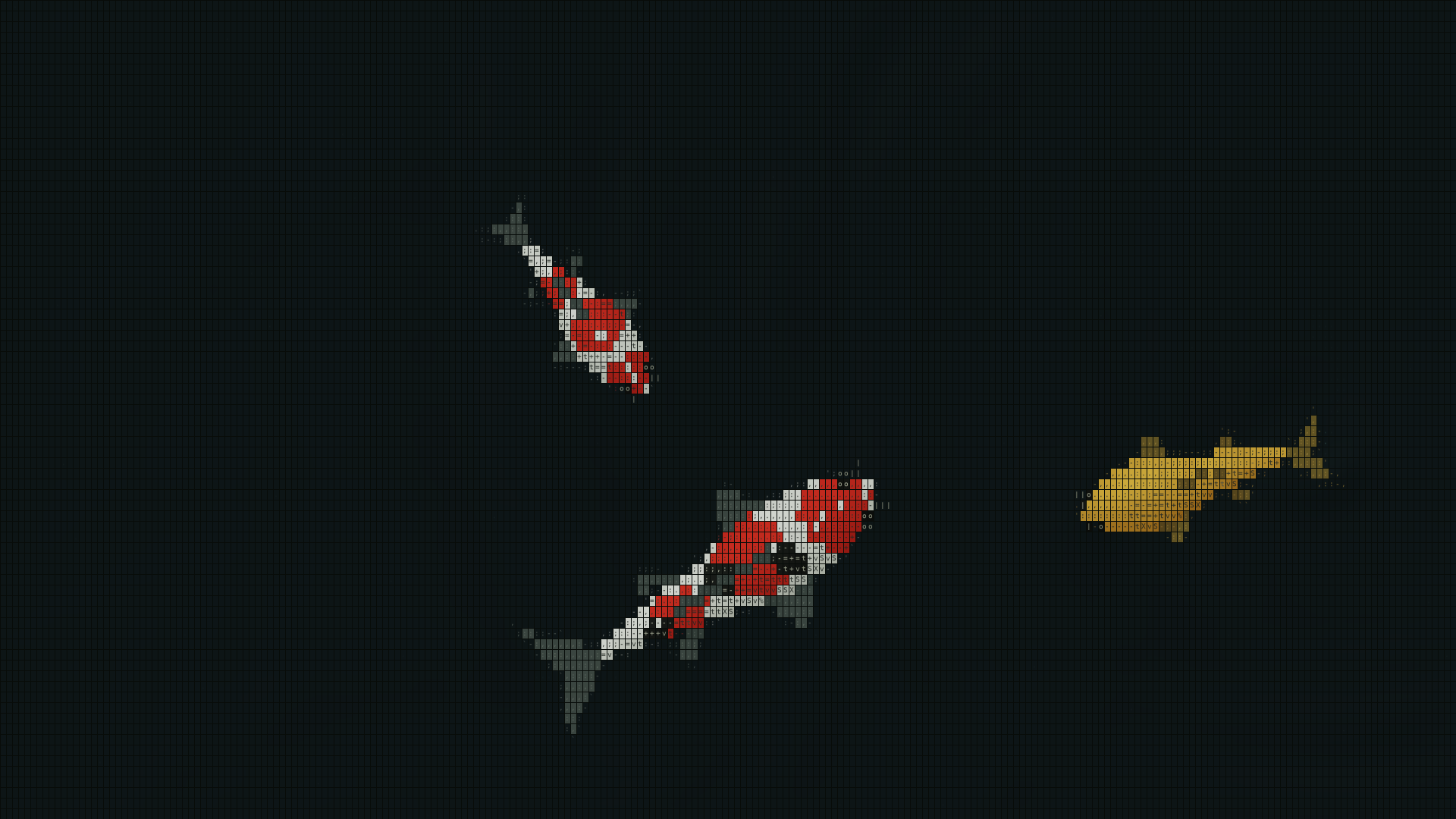
ASCII Japanese Garden Wallpaper draws its own pond with ASCII characters. You can choose a white or black pond and adjust the varieties, number, and speed of the koi. It is a standalone app for Windows 11 x64, available from Microsoft Store. ASCII Japanese Garden Wallpaper in Microsoft Store
Check how it will fit your PC
- Windows and processor type. Open Settings → System → About to check your Windows version and system type. Some apps specify x64 or ARM separately.
- Displays. If you use multiple monitors, check how the app handles your arrangement, especially when the screens have different resolutions or scaling.
- Stopping the motion. Check what happens when you pause the wallpaper, minimize settings, or exit. If you want the wallpaper to pause during a game or other full-screen activity, look for that option in the app.
- Startup. If you want the wallpaper ready every time you sign in, check for a startup setting.
Compare on the desktop you actually use
Leave your usual icons in place when you try a wallpaper. If labels are hard to read, try a different background color or fewer moving elements before deciding.
To compare the load on your PC, open Task Manager and observe CPU and GPU activity with the wallpaper running and stopped. Keep the displays and the rest of your workload the same. If you change the frame rate, keep the other wallpaper settings the same so you can see what the change does.
Try an ASCII pond
In ASCII Japanese Garden Wallpaper, minimizing settings leaves the pond running. Pausing stops the motion, and closing the settings window with X exits the app. The setup guide walks through installation and putting the first pond on the desktop. Getting started with ASCII Japanese Garden Wallpaper
If the visual style is the deciding factor, explore the character patterns, the movement of the koi, and how the pond fits around desktop icons. ASCII live wallpapers · Koi pond live wallpapers · Japanese garden live wallpapers