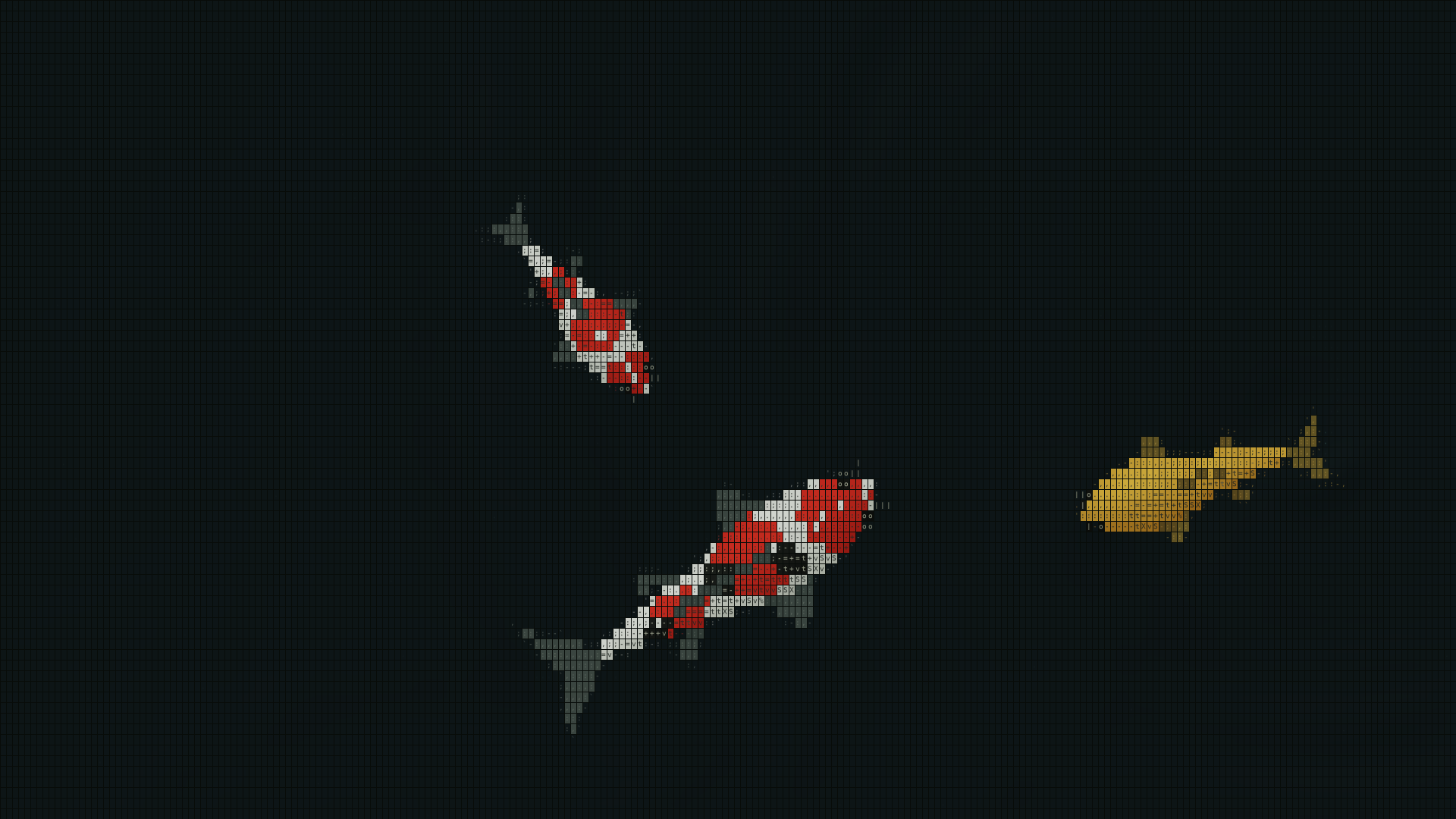

ASCII Japanese Garden Wallpaper puts a pond of swimming ASCII koi behind your Windows desktop icons. After installing the app, you can turn on the wallpaper from the settings window.
Install from Microsoft Store
The app requires Windows 11 x64. Open Settings → System → About and check System type for an x64-based processor. Microsoft's guide to checking your Windows device
- Open the ASCII Japanese Garden Wallpaper listing in Microsoft Store. The Japanese listing name is ASCII日本庭園.
- Check the price and availability shown for your region, then follow the Store prompts to get and install the app.
- After installation, launch ASCII Japanese Garden Wallpaper from the Windows Start menu.
Microsoft also documents how to install apps from Microsoft Store. Microsoft's installation guide
Put the pond on your desktop
Select Show on desktop near the bottom left of the settings window. The pond appears behind your desktop icons. Minimize the settings window to return to work with the pond still running.
To reopen settings, select the white koi icon in the taskbar notification area or press Ctrl+Alt+A. Check the hidden icons if the koi icon is out of sight. The X in the top right closes the app and removes the pond from the desktop.
Adjust the koi and the background
Use the panel on the right side of the settings window to adjust the pond.
- Background. Switch between a white pond with Frosted white and a black pond with Smoked glass. Try both with the desktop icons you use every day.
- Koi varieties and count. Use the arrows under Koi in the pond to browse the varieties, then use the plus and minus buttons. The app includes 11 varieties and displays one to nine koi at a time.
- Swimming speed and frame rate. Swimming speed controls how fast the koi move. Wallpaper frame-rate limit caps how often the picture updates. Change one setting at a time to compare the effect.
- Pause. Select Pause swimming to stop the motion while leaving the pond visible. Use Resume swimming to start it again.
The app saves your background, speed, frame-rate, and language preferences on the PC. The pond starts with three koi each time you launch the app.
Start the pond when you sign in
Turn on Start with Windows to start the wallpaper at your next sign-in with the settings window closed. If the pond does not start, check Settings → Apps → Startup in Windows to see whether the app is enabled. Microsoft's startup-app settings guide
If the pond does not appear
Check that the wallpaper is enabled in settings. Try turning it off and back on. If the pond is visible and the koi are still, check whether the button says Resume swimming. Return to the desktop before checking the animation if you were using an app in full screen.
If you are still deciding what kind of wallpaper fits your desktop, start with the Windows 11 guide. Choosing a live wallpaper for Windows 11