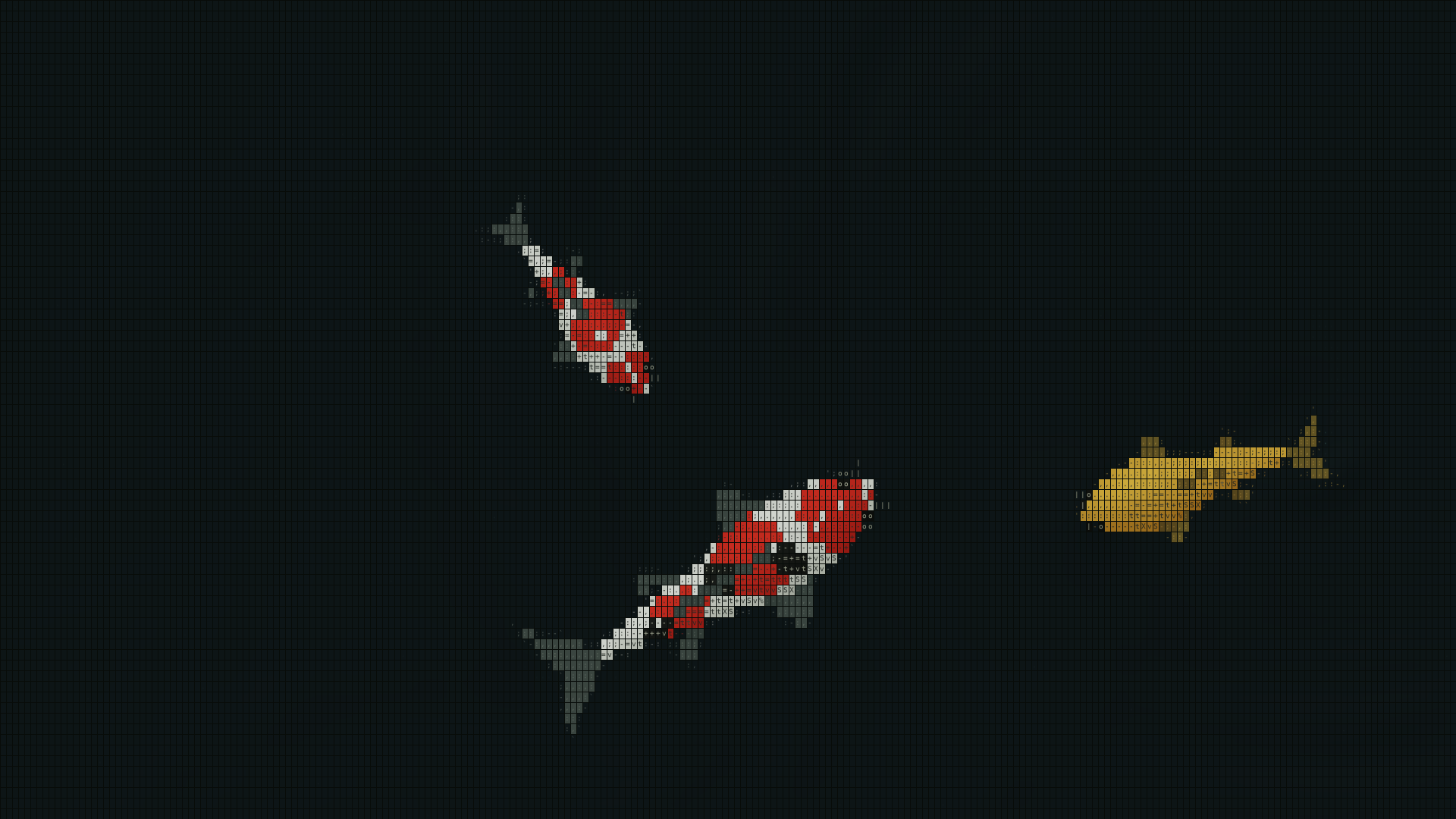

Start with what you want to see when you return to the desktop. A photograph holds one arrangement of colors and patterns. A live pond lets you watch the fish change direction and move past one another as you work.
Compare a photograph and a moving pond
For a photograph, choose a composition you like at a resolution that fits your monitor. For a video wallpaper, watch how the clip joins up when it loops.
In a pond drawn by a live wallpaper app, the fish change direction and spacing over time. A photorealistic koi, an illustration, and a fish made from small characters each look different on a desktop. Step back from the preview and see how easily you can follow the fish's outline and direction.
Choose varieties and fish count in ASCII Japanese Garden Wallpaper
The app includes 11 koi varieties, including Kohaku, Tancho Kohaku, Shiro Utsuri, and Asagi. In the settings panel on the right, choose how many fish of each variety to show, with one to nine fish in the pond.
Try a few koi with different colors and markings first. Wider spacing makes individual fish easier to follow. Adding more brings motion to more parts of the screen. Check how the scene looks with your usual desktop icons in place.
Adjust swimming speed and frame rate
Swimming speed controls how fast the fish travel. Wallpaper frame-rate limit controls how often the wallpaper can redraw. To watch the fish glide more slowly, start with swimming speed. Adjust the frame-rate limit separately if you want to change how often the screen updates.
Choose Pause swimming to hold the scene while you look at the colors and layout. For help choosing the background around your icons and windows, see Japanese garden wallpaper layout and motion.
Try the pond on your Windows desktop
ASCII Japanese Garden Wallpaper is designed for Windows 11 x64. See the getting-started guide for how to show the pond and reopen settings.