
When choosing a Japanese garden wallpaper, look at the whole desktop and then at the parts still visible around your usual windows. A photograph, a looping video, and a pond drawn by an app each give you a different view as you work.
Look at the space around icons and windows
- Open a window at the size and position you normally use. Notice how much of the background is still visible.
- Read your desktop icon labels where they overlap a detailed part of the image and where the scene has more open space.
- Show the full desktop again and compare it with the view when only a strip of background is visible.
A photograph lets you choose a fixed composition. In a loop, you can see where motion repeats. In a pond drawn by an app, the fish swim across the desktop, changing where you see movement and where you see open water.
Set a pond of character-drawn koi on the desktop
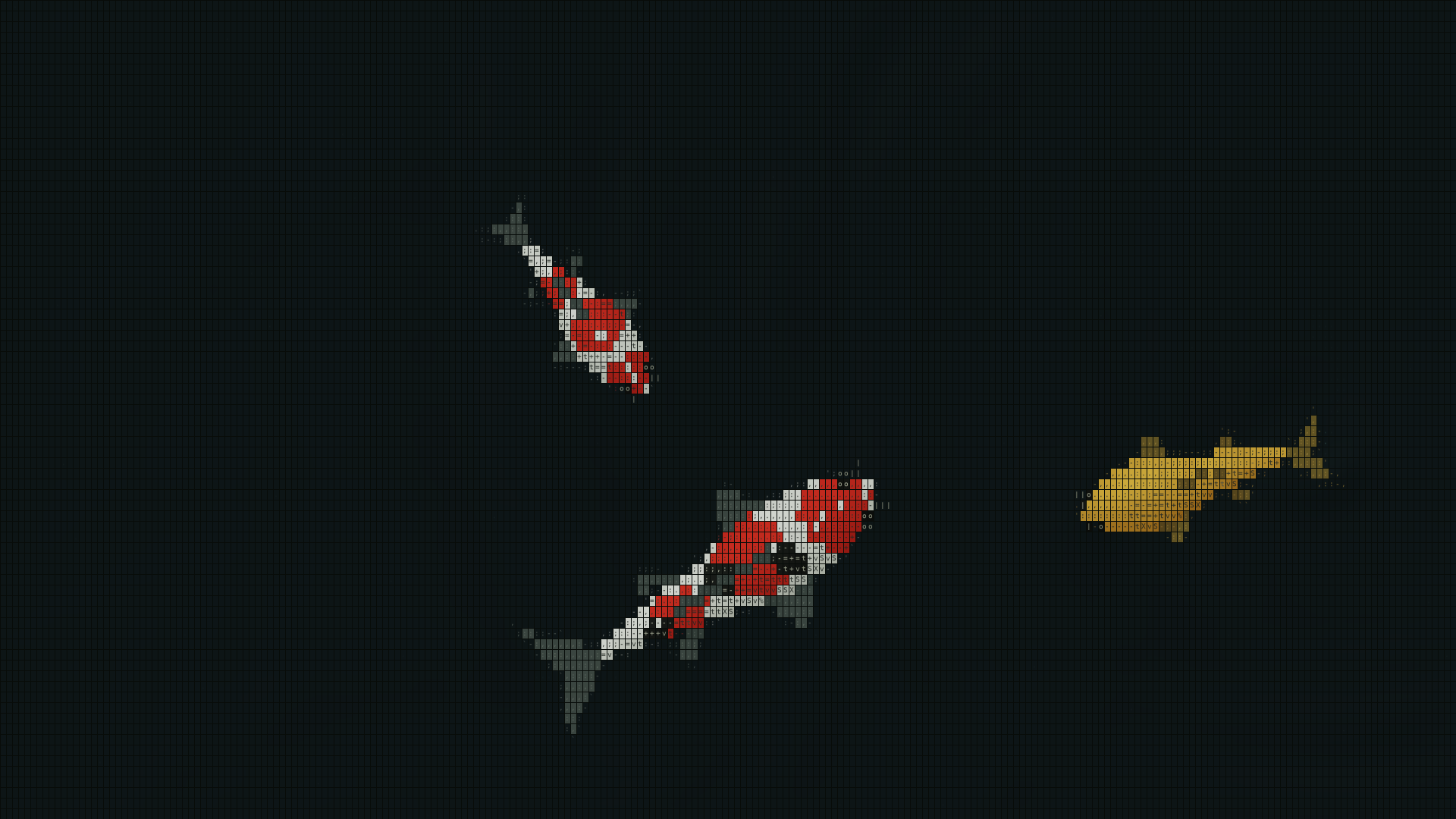
ASCII Japanese Garden Wallpaper draws koi that swim behind your desktop icons. Watch where the fish travel for a little while to get a sense of how much movement you'll see around your usual windows.
Choose a white or black background. Try each with one of your everyday apps open and see how clearly its window edge stands out against the pond. To adjust the fish varieties, numbers, or swimming speed, see Choosing a koi pond wallpaper.
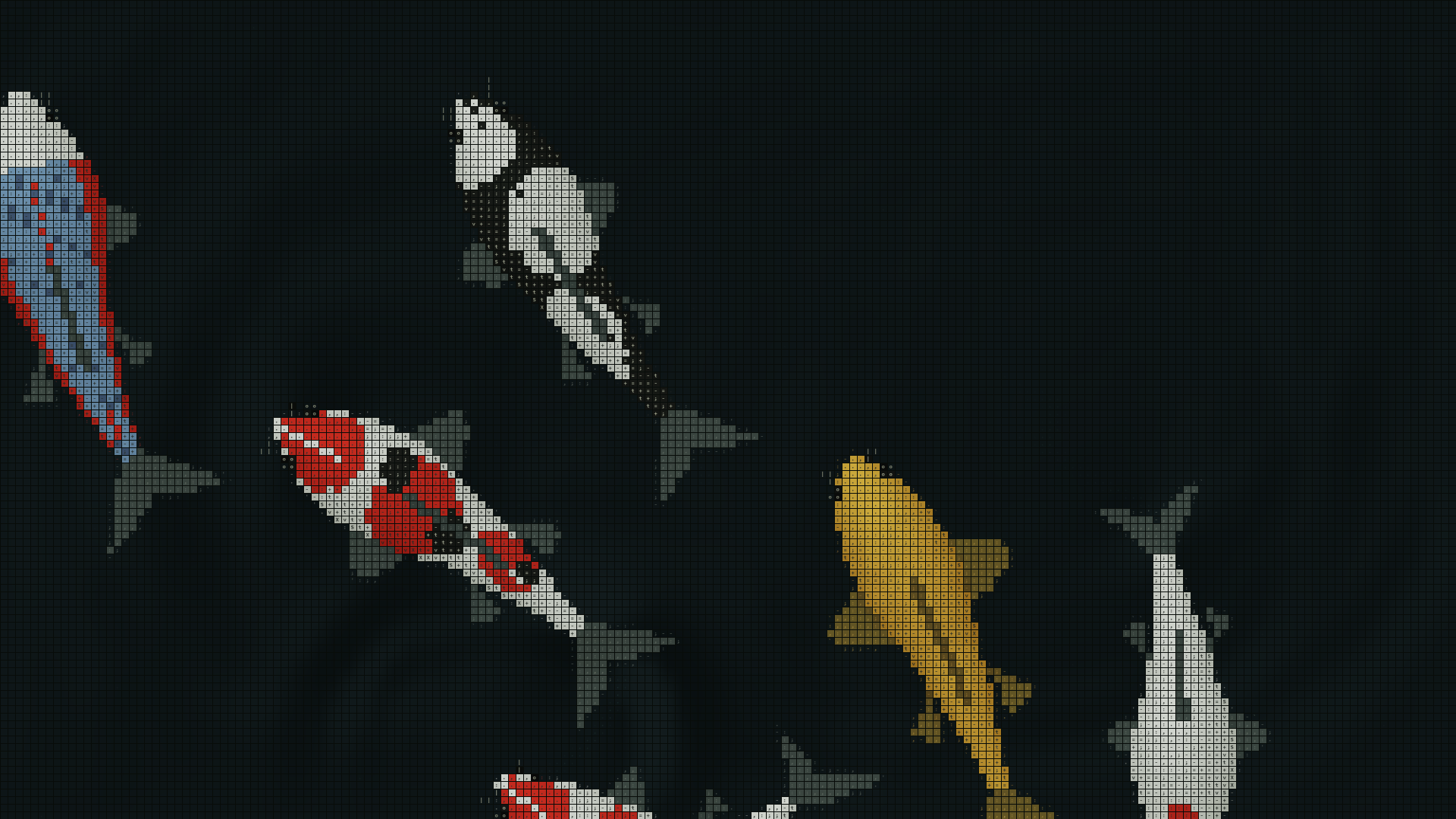
The white pond at the top and the black pond above are frames rendered by ASCII Japanese Garden Wallpaper. Try the scene with your own icon layout to see how easily you can read the labels.
Show the garden on your desktop
ASCII Japanese Garden Wallpaper is designed for Windows 11 x64. Follow the getting-started guide to show the pond on your desktop. If you're still comparing photographs, videos, and apps, see Choosing a live wallpaper for Windows 11.